FramePainter: Revolutionary AI Image Editing
Experience the next generation of image editing with FramePainter. Transform your creative vision using our AI-powered sketch-based controls and video diffusion technology.
Try It NowFramePainter Demo
Create and transform images with AI tools for your next project.
Loading FramePainter demo…
Please wait while the demo prepares.
Frame Painter in Action
See how FramePainter's AI transforms your sketches into stunning edits
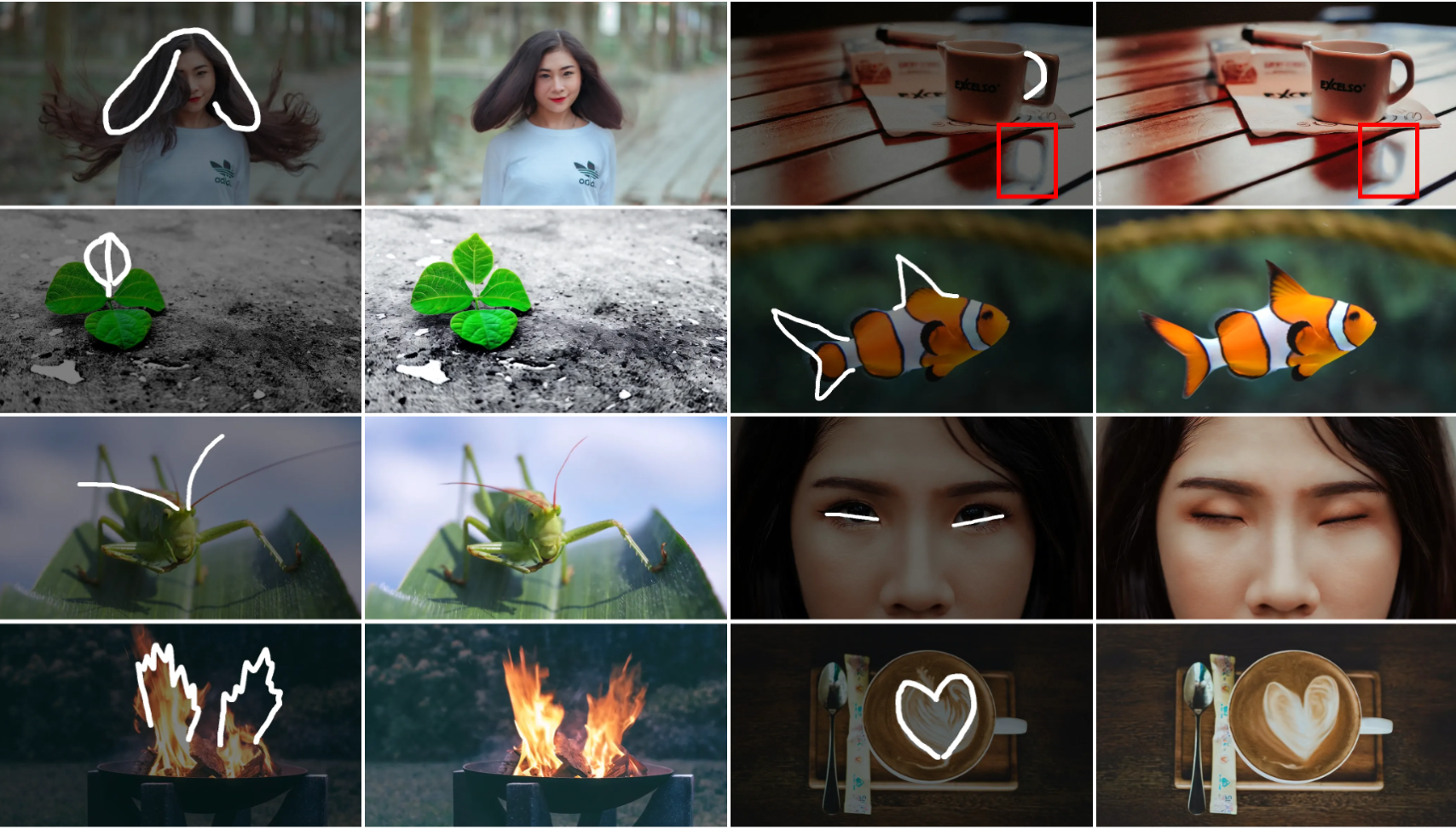
Discover the power of FramePainter's innovative sketch-based editing system. Whether you're making simple adjustments or complex transformations, FramePainter's AI understands your intent and delivers professional results.
The Frame Painter Advantage
Intuitive Sketch Controls
FramePainter translates your sketches into precise edits, making complex image transformations simple and intuitive.
Advanced AI Technology
Powered by state-of-the-art video diffusion models, FramePainter delivers unprecedented editing capabilities.
Professional Results
FramePainter's AI ensures high-quality output with real-time previews and intelligent processing.
Common Challenges Solved
Complex Tools
Traditional editing tools have steep learning curves and complex interfaces.
Time-Consuming Edits
Manual editing processes take hours to achieve professional results.
Limited Creative Control
Existing tools restrict what's possible with image editing.
How It Works
1. Draw Your Edit
Sketch your desired changes directly on the image
2. AI Processing
Our AI understands and implements your edits
3. Get Results
Review and download your edited image
Applications
🎨 Creative Design
- • Concept Art Creation
- • Advertising Image Editing
- • Social Media Content
🖼️ Photo Editing
- • Portrait Enhancement
- • Scene Element Replacement
- • Creative Style Transfer
🎯 Professional Production
- • Film Post-production
- • Game Art Design
- • Digital Art Creation
Make the edit readable
FramePainter explores interactive image editing through sketch-based control. Think of the sketch as a visual instruction: it tells the editing process where a change should happen and how it should relate to the original image. Begin with a single adjustment that you can explain clearly before combining several changes in one attempt.
Open framepainter.com and study the demonstration before preparing your own image. Identify the subject, the region that should change, and the details that should remain recognizable. Use the linked project repository for current setup and usage instructions. The examples on this page introduce the editing approach; available controls and requirements depend on the implementation you choose.
Choose a useful starting image
Select an image in which the target object is easy to distinguish from its surroundings. Keep an unedited copy at its original dimensions. If you want to move part of a subject, consider what may be revealed behind it and how nearby shapes relate to the movement. This makes it easier to judge whether the result respects the original scene rather than merely looking different.
Write down the intended change in one sentence. Then compare that sentence with the sketch. If the two express different directions or several competing goals, simplify them before evaluating a result. A focused first attempt gives you a clearer basis for deciding which part of the instruction needs revision.
Try a focused scenario
Adjust a pose in concept art
Start with a character whose pose is readable against the background. Choose one part of the pose to explore, and keep the surrounding silhouette in mind. Compare the edited shape with the original at both full view and a closer crop. Check that the intended gesture is clearer and that nearby details still make sense. Treat the result as a concept to review, rather than assuming it is ready for final production.
Rebalance a composition
For a scene or product concept, first identify which element should attract attention. A small spatial change can affect the relationship between the subject and the empty area around it. Review the whole composition before zooming into texture. If the focal point is still unclear, reconsider the edit itself instead of asking for several additional changes at once.
Explore an illustration variation
Use an existing illustration to test a variation in shape or arrangement. Preserve a copy of the input and name each attempt after the change you are investigating. Compare alternatives side by side, paying attention to line direction, overlap, and visual balance. This creates a useful record of the exploration even when a result is unsuitable for the final artwork.
Judge what stayed intact
Check the edited area and the surrounding image together. Look for unexpected changes in the subject's identity, repeated texture, mismatched edges, or a background that no longer fits the perspective. A strong local edit should still work as part of the complete image. Review at the size where the artwork will actually appear, because small artifacts and composition problems become noticeable at different scales.
Keep a short note for each attempt: what you asked to change, what improved, and what should be preserved in the next revision. Change one instruction at a time when possible. If an edit creates several new problems, return to the original instead of repeatedly editing an increasingly distant result.
The demo area and the linked alternative product are separate experiences. If the demo is unavailable, consult the project resources or inspect the alternative tool's workflow before uploading an image. Confirm that the available editing controls match your intended task, and use source images that you are authorized to edit and publish.
How should I compare two edits?
Keep the original image visible next to both candidates, and compare the same region at the same scale. First check whether each candidate follows the intended change. Then inspect the parts that should have stayed unchanged. Choose the version that best supports the composition and preserves the details you need, even if another version initially looks more striking.
FramePainter FAQ
What makes FramePainter unique?
FramePainter combines intuitive sketch-based controls with powerful AI technology, making professional image editing accessible to everyone.
How can I start using FramePainter?
FramePainter will be available as an open-source project soon. Follow our GitHub repository for the latest updates and release information.
What can I create with FramePainter?
From simple photo enhancements to complex creative transformations, FramePainter supports a wide range of editing tasks with its AI-powered tools.